
How to Add Manufacturer’s Information to Your Shipment
In this guide, you’ll learn how to add the manufacturer’s information for each item when you book a shipment on Terminal Africa. We’ll use a shipment to Germany as an example.
Step 1: Start a new international shipment
Log in to your Terminal Africa dashboard and start a new international shipment. Enter your sender details and your receiver's address, then continue to Add Items.
Step 2: Tap Add Item
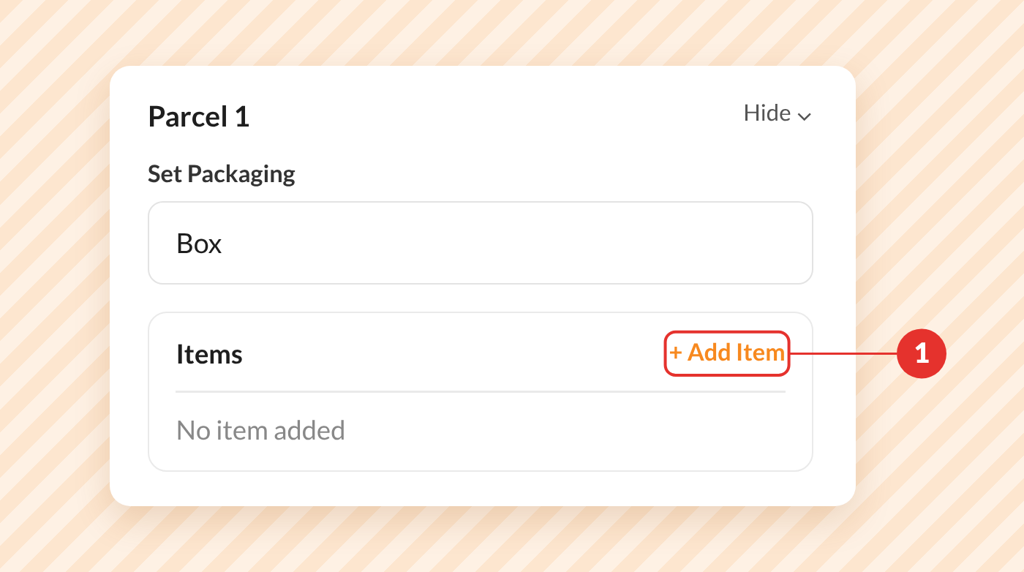
In your parcel's Items section, tap + Add Item.
Step 3: Describe Your Item
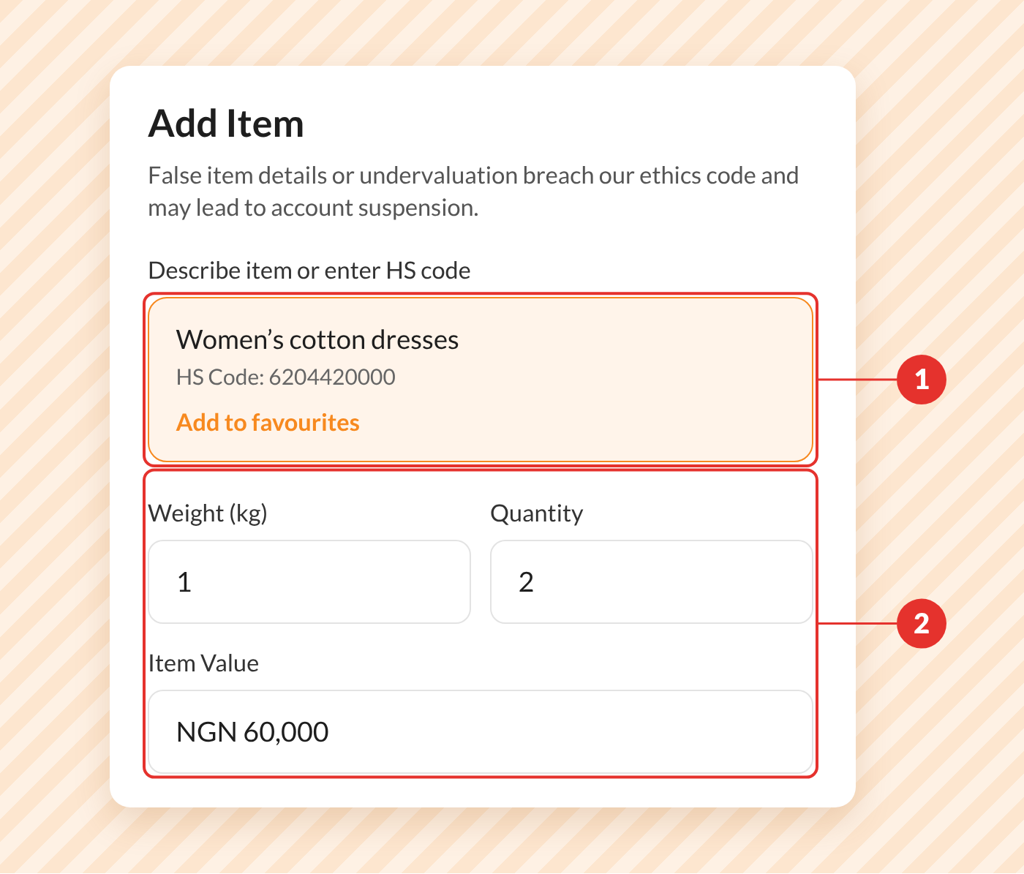
Type what you're sending, for example, "Ankara dress", and pick the closest match from the HS Code Generator results. Then enter the item's weight, quantity and value.
Step 4: Tap Add New Manufacturer
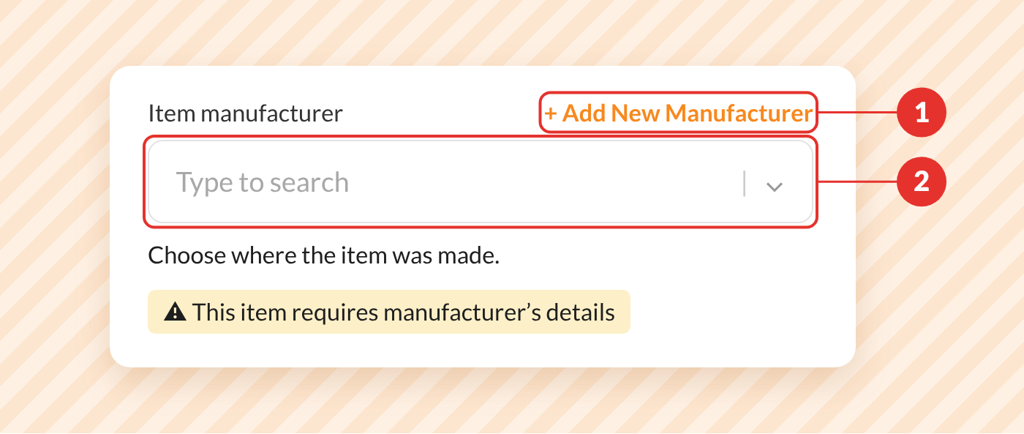
Under Item manufacturer, tap + Add New Manufacturer. If you've added this manufacturer before, search for them in the box instead.
Step 5: Fill In the Manufacturer's Details
Enter the manufacturer's:
- Legal name of the establishment
- Address
- Postal / ZIP code and email address
- Phone number
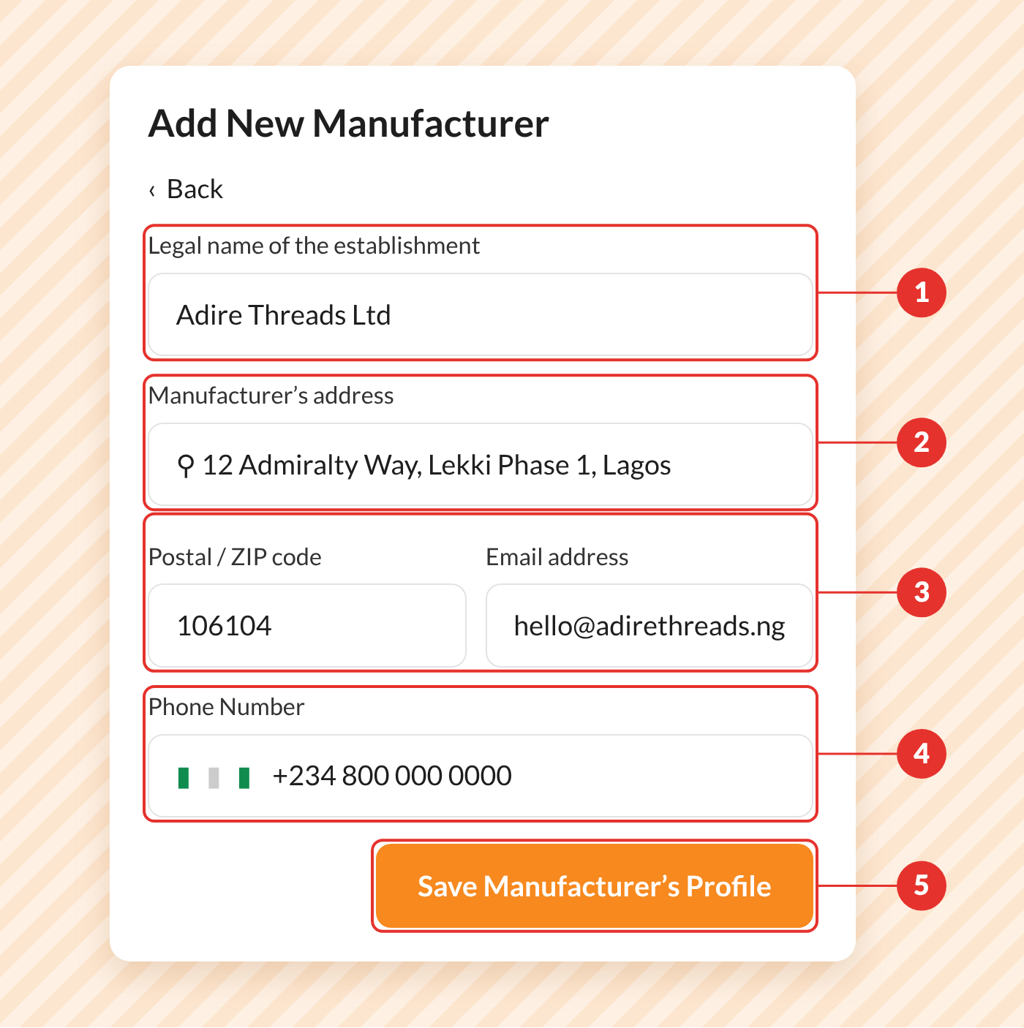
Then tap Save Manufacturer's Profile.
You can find these details on the item's label or box, or on your supplier's invoice. If you made the item yourself, use your own business details.
You can also use the name of the market; for example, Balogun Market can be used as the Legal, and you use the correct address and phone number of the contact person/seller in the market.
Step 6: Save Your Item
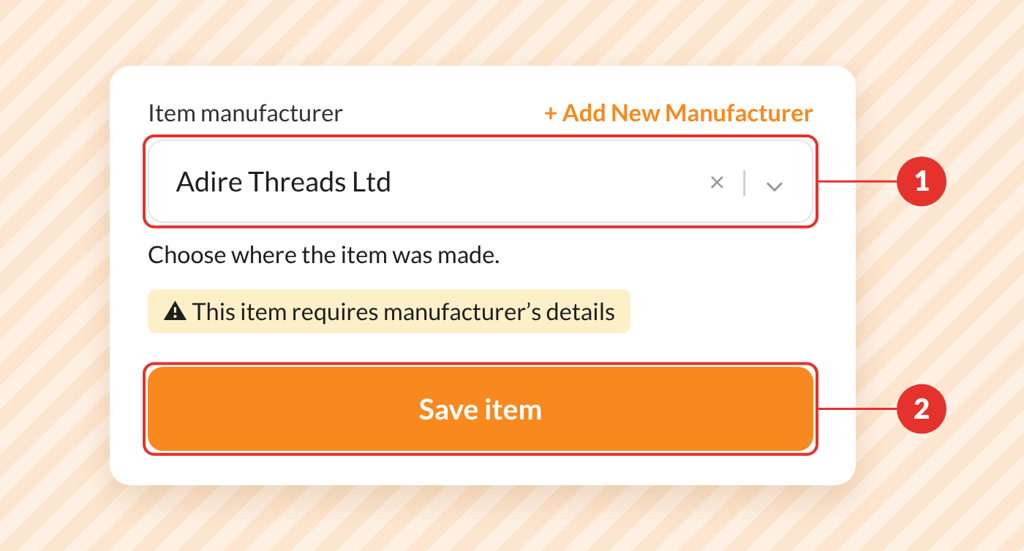
Check that the manufacturer now shows under Item manufacturer, then tap Save item. Shipping more than one item? Repeat these steps for each one, then complete your booking as usual.
More Like This

How to Schedule a Pickup for Your Shipment

How to Easily Generate an FDA Prior Notice

How to Send Clothes from Port Harcourt to Canada

Have further questions?
Contact Us